How One Simple Device Transforms Your Viewing Experience
It started with a flicker. Then a blackout. My Laptop screen Stayed bright, but the monitor across the room went dark-again. I wasn’t presenting to investors or streaming a keynote. I was just trying to watch the same documentary in two rooms without buying a second subscription.
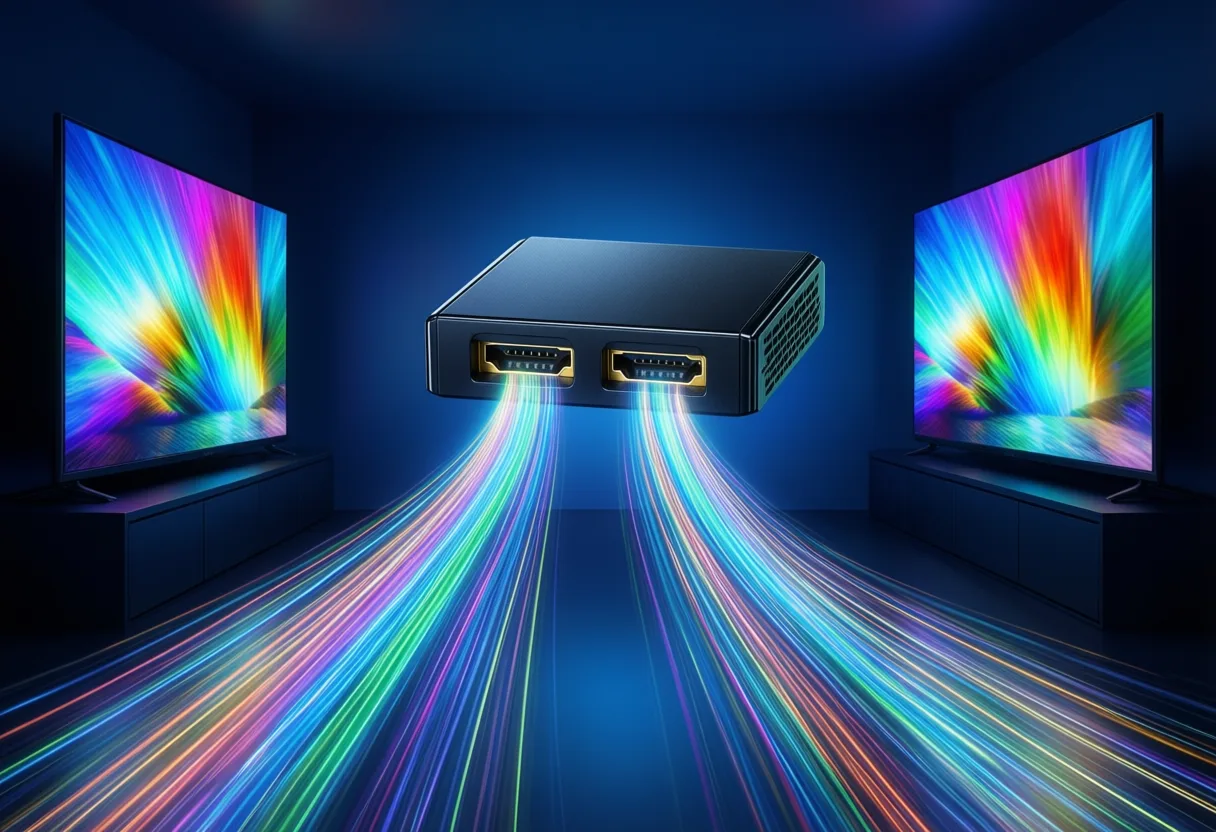
That’s when I met the unassuming black box that lives behind my entertainment center: the HDMI splitter. Small enough to fit in a shirt pocket, it quietly copies one video signal and sends it to two displays at once. No extra cables, no second device-just mirrored content, perfectly in sync.
It’s not magic. It’s engineering. And once you understand how it works, you’ll wonder how you ever managed with just one screen.
Why You Might Need More Than One Screen
Imagine teaching a remote class where your slides need to appear on both a projector and a Backup monitor. Or running a pop-up shop where the same product video plays on two screens facing different aisles. One source, two audiences-this is where mirroring matters.
In homes, it’s just as useful. Picture a family movie night where the living room couch is full, but someone’s stuck on the sofa in the basement. Instead of shouting plot twists through the vents, you mirror the stream to a second TV.
Or consider a gym with treadmills lined up along a wall. Each has a screen, but the content? It’s the same looped playlist of music videos and workout tips. One media player, split to Ten screens-efficient, clean, and quiet.
- You don’t always need different content on each screen
- Sometimes, consistency across locations is the goal
- And one device driving all of them reduces clutter and cost
Can One Source Really Power Two Displays?
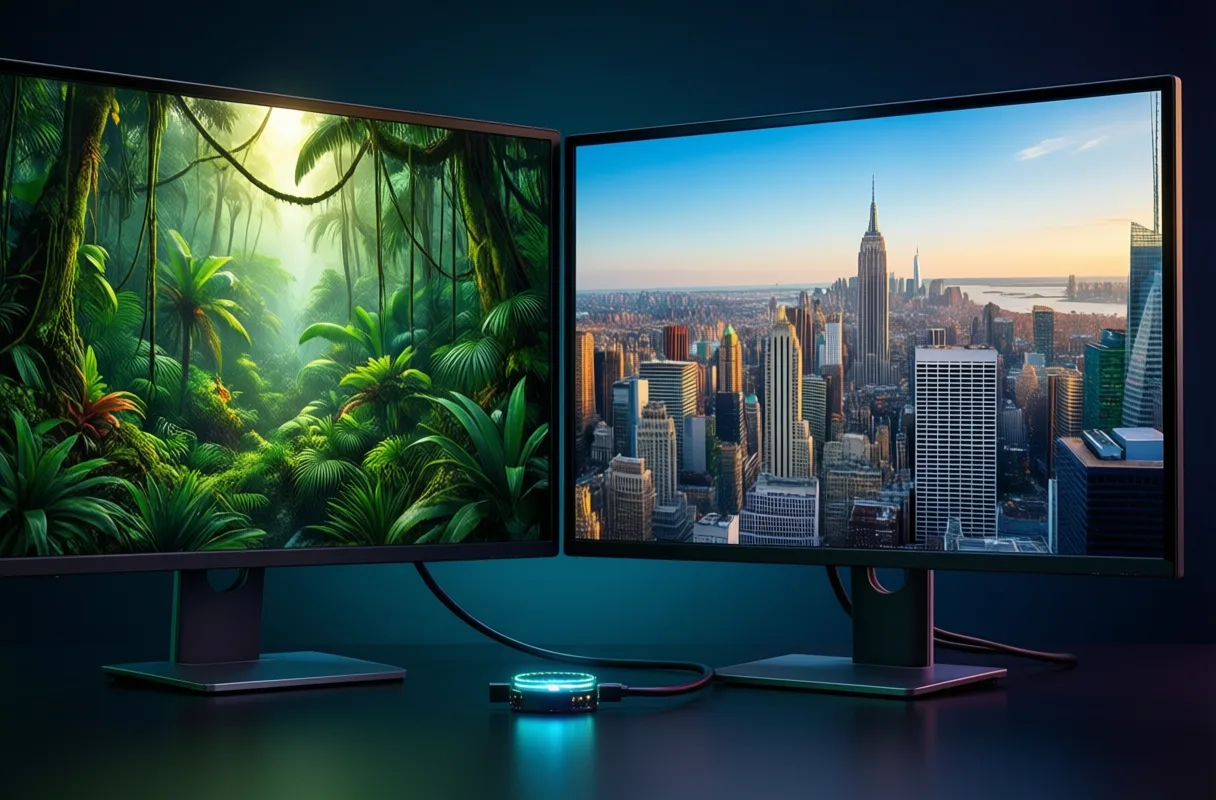
Yes-but only if the signal is strong and the hardware is up to the task. HDMI splitters Don’t generate video. They copy it, like a photocopier for pixels. The source-be it a laptop, streaming box, or game console-sends a single stream, and the splitter duplicates it.
But here’s the catch: the source must output a resolution and refresh rate that both displays can handle. If one monitor maxes out at 1080p and the other supports 4K, the splitter will default to the lowest common denominator. No exceptions.
And power matters. Some splitters are passive, drawing energy from the HDMI port itself. Others need an external power source to maintain signal integrity. Skip the power, and you risk dropouts.
- Signal fidelity depends on both source and display compatibility
- Resolution drops to the lowest supported setting
- Powered units often perform more reliably over time
Clearing Up the Confusion: Splitting vs. Extending
Splitting is not extending. That’s the first thing to understand. A splitter copies one image and sends it to multiple screens. Extending, on the other hand, treats two screens as one continuous workspace-like dragging a window from your laptop to a second monitor.
If you want to watch the same movie on two TVs, use a splitter. If you want to spread your spreadsheet across two monitors, you need a different setup-usually built into your computer’s graphics settings.
People mix them up because the cables look the same. But the function? Worlds apart. One duplicates. The other expands.
- Splitting = mirroring = same image on both screens
- Extending = expanding = one workspace across two screens
- The HDMI Splitter Dual Display setup only handles the first
Inside the Hardware: What to Look for in a Quality Unit
Not all splitters are created equal. Some fail under pressure-literally. Long cables, high resolutions, or older source devices can push cheap models to their limits.
Look for active circuitry. That means internal components that boost and stabilize the signal. Passive splitters might work for short runs, but active ones handle longer distances and higher bandwidth.
HDMI version compatibility is another must. If your source outputs 2.0 and your splitter only supports 1.4, you’ll lose features like HDR or higher frame rates. Check the specs-quietly.
- Active signal amplification helps prevent dropouts
- Match HDMI versions between source, splitter, and display
- Metal housings often dissipate heat better than plastic
And don’t ignore the power adapter. If it comes with one, use it. That extra juice keeps the signal steady, especially when both displays are far from the source.

Setting It Up Without the Headache
Plug in the source first. That’s the golden rule. Turn it on and make sure it’s detected. Then power up the splitter-yes, even if it draws power from HDMI, give it a moment. Finally, turn on the displays.
Wait. Let each device recognize the one before it. Rushing this sequence is the most common cause of “no signal” messages.
Cables matter. Use high-speed HDMI cables rated for the resolution you’re sending. And keep them as short as possible-long runs increase the chance of interference.
- Power on in order: source → splitter → displays
- Use high-quality, properly rated HDMI cables
- Avoid sharp bends or pinched cords near power sources
One more thing: label your cables. You’ll thank yourself later.
Real-World Uses That Go Beyond Home Entertainment
Classrooms use them to mirror lessons to wall-mounted screens. Retail stores display promotions on multiple TVs without syncing individual sticks. Even therapists use dual screens to show clients the same diagram during remote sessions.
At a recent tech conference, I watched a speaker demo a live coding session-projected on two screens at opposite ends of a ballroom. Same feed, perfect sync. The audience on the left saw exactly what the audience on the right saw.
Restaurants pipe reservation apps to both host stand and kitchen monitor. Gyms stream workout routines to every screen in the cycling room. It’s not flashy, but it works.
- Education, retail, and fitness all benefit from mirrored content
- Simplicity often beats complexity in real-world use
- One source, two screens, zero lag
Avoiding the Pitfalls That Cause Flickering or Dropouts
Flickering usually means one of three things: weak power, bad cables, or mismatched specs. Start with the power-plug in the adapter, even if the splitter seems to work without it.
Then test each cable. Swap one at a time. A single faulty wire can bring the whole setup down. And don’t daisy-chain splitters. One in, two out-that’s the design. More than that, and you’re asking for trouble.
Finally, check resolution settings. If your source is set to 4K but one display only accepts 1080p, the splitter may struggle to negotiate. Lower the output temporarily to test.
- Always use the included power supply
- Test cables individually when problems arise
- Match resolution settings across all devices
What to Do When One Screen Stays Black
First, check the input source on the dark screen. It sounds obvious, but it’s the most common fix. Then, unplug and replug the HDMI cable-both ends.
If that doesn’t work, swap the cables between the two displays. If the problem moves, it’s the cable. If the same screen stays dark, it’s likely the port or the display itself.
Restart the chain: turn everything off, wait 10 seconds, then power on in order. Source first. Then splitter. Then screens.
- Verify input selection on the affected display
- Swap cables to isolate the issue
- Reboot the entire chain in correct sequence
Sometimes, the simplest fixes are the ones we overlook.
Beyond the Basics: When a Splitter Isn’t the Right Tool
If you need different content on each screen, a splitter won’t help. That’s a job for a video switcher, a multi-output graphics card, or software-based solutions built into modern operating systems.
Or if you’re sending signals over long distances-say, from a basement server to a rooftop display-you might need HDMI over Ethernet or fiber extenders instead.
And for true multi-tasking, like writing on one screen while referencing a document on another, extending is the answer. Again, that’s handled by your computer, not the splitter.
- Splitters mirror-nothing more
- Different content requires different tools
- Know when to step beyond simple duplication
Final Setup Tips for a Seamless Dual-Screen Experience
Start simple. Use short cables, a powered splitter, and identical displays if possible. Test before mounting. Then label every cord.
Keep firmware updated on your source device. Outdated drivers can cause handshake issues that look like hardware failure.
And remember: this isn’t about having more screens. It’s about making what you already have work smarter.
- Test before final installation
- Update source device firmware regularly
- Label all cables for quick troubleshooting
One signal. Two screens. Infinite clarity.
Splitting Signals Without the Split Headaches
Ever wonder how one HDMI port can feed two screens at once? That’s the magic of an HDMI splitter. These unassuming little boxes take a single video and audio signal and clone it perfectly to two displays. Whether you're showing a presentation in two rooms or want the same game on both your TV and monitor, the splitter handles it seamlessly-no special setup needed.
Why Two Screens Beat One
Duplicating your display isn’t just about convenience-it opens up creative uses. Teachers use them to show the same lesson on front and back screens so every student gets a clear view. Gamers plug them in to mirror their setup on a secondary monitor for spectators during live streams. Even bar owners rely on HDMI splitters to broadcast the big game to every screen without lag or loss in quality. And because HDMI carries both picture and sound in one cable, the splitter keeps everything perfectly in sync.
One surprising perk? These devices are mostly plug-and-play. No drivers, no software, no power adapter needed-just connect, and it works. While some early models struggled with 4K resolution, modern versions handle high-definition signals like a champ, making dual-screen setups simpler than ever. Explore more stories, videos, and creators on Loaded.
Frequently Asked Questions
What does an HDMI splitter do?
An HDMI splitter copies one video and audio signal and sends it to two displays at once. It mirrors the same content on both screens without requiring additional software or devices.
Can an HDMI splitter send different content to each screen?
No, an HDMI splitter only duplicates the same image and sound to both screens. For different content, you need a video switcher, multi-output graphics card, or screen extending via your computer’s settings.
Why does my HDMI splitter cause flickering or no signal?
Flickering or no signal can result from weak power, faulty cables, or mismatched resolution. Always use the power adapter, test cables individually, and ensure all devices support the same resolution.
Do I need special cables for an HDMI splitter?
Yes, use high-speed HDMI cables rated for the resolution you’re sending. Keep cables as short as possible and avoid sharp bends or interference from power sources.
This article was produced with AI assistance. How Neuron Magazine uses AI.
Saoirse investigates how automation, remote systems, and AI reshape labor, careers, and human purpose. She centers worker voices and cultural change, blending data with narrative depth to reveal what the future feels like on the ground.