In a world where digital real estate is as valuable as physical space, the promise of two pristine 4K screens glowing side by side feels like a leap toward cognitive expansion-more windows, more data, more control. But the truth hiding beneath the sleek cables and compact boxes is far more nuanced than marketing would have us believe.
Can One Port Really Power Two 4K Displays?
The dream of connecting Dual 4K monitors with a single HDMI port is seductive, especially when your laptop offers only one video output. Many assume a small device-often called a Monitor Splitter-can effortlessly unlock this dual-display utopia, multiplying productivity with the click of a cable. Yet the physics of digital signals doesn’t bend easily to desire, and the reality is that Not all splitters enable true multi-display functionality.
A Monitor Splitter can indeed connect multiple monitors to a single computer, giving you the freedom to multitask like never before-but only if you understand what kind of signal it delivers. Some devices merely duplicate the image across both screens, which may be useful for presentations but does little for workflow expansion. Others claim extension capabilities, but this often depends on the underlying hardware of the source device, not the splitter itself.
For true dual 4K operation, the splitter must support sufficient bandwidth and the correct protocol-such as HDMI 2.0 or DisplayPort 1.4-to handle two high-resolution streams. Without these, you’re not expanding your workspace; you’re mirroring limitations. The difference between illusion and utility lies not in the splitter alone, but in how it interacts with your Entire system’s Architecture.
Understanding Signal Duplication vs. True Multi-Display Expansion
Signal duplication and display extension are often conflated, but they represent fundamentally different computing experiences. Duplication means both screens show the exact same content, pixel for pixel-an arrangement useful for training sessions or public displays, but stagnant for dynamic work. Extension, on the other hand, treats the second screen as a contiguous digital canvas, allowing windows to span across monitors and applications to breathe.
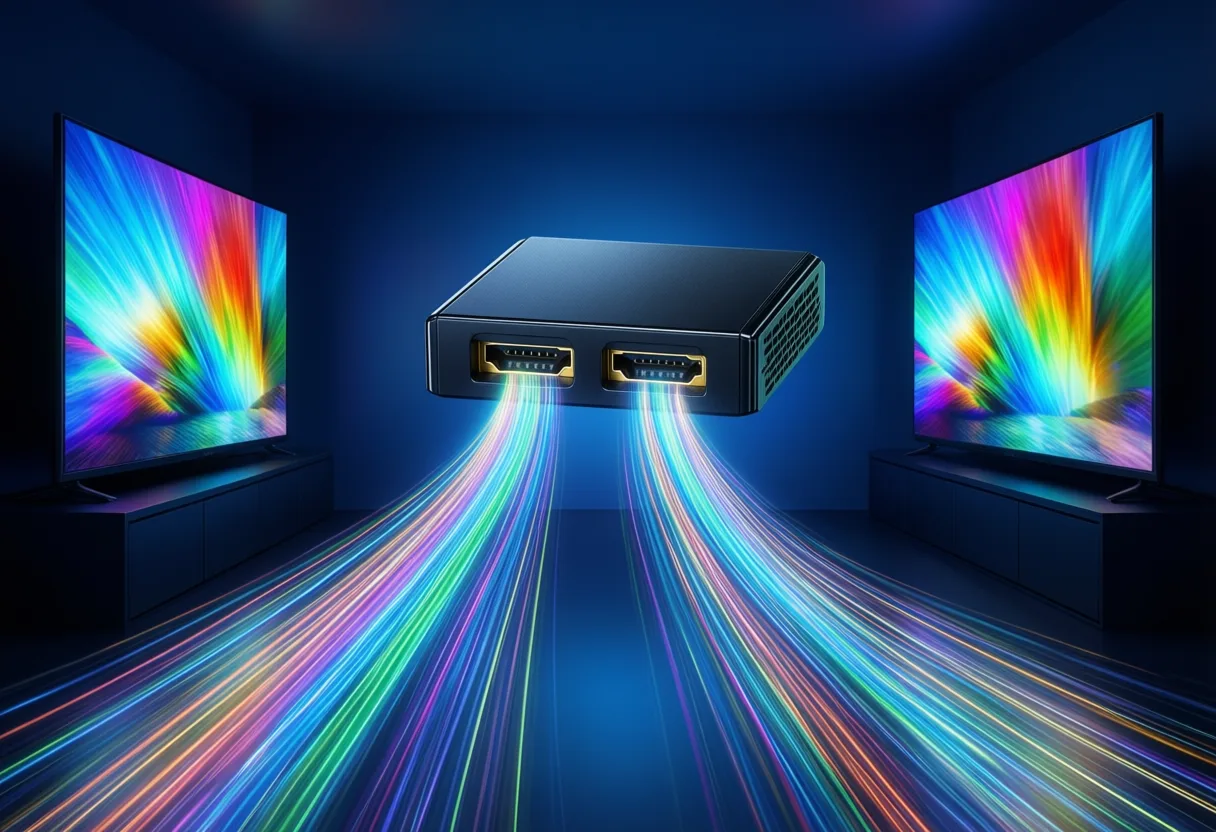
An HDMI Splitter allows you to mirror your primary display on another monitor, but take note: HDMI splitters can only duplicate video outputs, not extend them. This is a hard technical constraint, not a software limitation. The splitter receives one signal and copies it identically to multiple outputs, like a photocopier stamping the same page twice. There’s no intelligence in the box to manage separate desktop spaces or route different data streams.
True multi-display expansion requires either multiple video outputs from the source device or a specialized adapter that emulates a second GPU output-something most passive splitters cannot do. Devices like USB-C docking stations with DisplayPort Alt Mode or MST (Multi-Stream Transport) hubs can enable extension, but they are not technically “splitters” in the traditional sense. Understanding this distinction is essential before investing in hardware that may not fulfill your workflow needs.
The Hidden Limitation of HDMI Splitters
At first glance, HDMI splitters appear to be the ultimate shortcut-a small box that magically transforms one port into two. Marketed as versatile solutions for laptops, PCs, and gaming systems, these devices promise crisp 4K or 1080p visuals across multiple screens. But their magic has strict boundaries, rooted in the way HDMI protocols were designed.
HDMI was built primarily for one-to-one transmission: one source to one display. When a splitter is introduced, it doesn’t create new bandwidth-it divides the existing signal. This means that even if both monitors support 4K, the splitter may downscale resolution or refresh rate to maintain synchronization. For example, two 4K displays at 60Hz may only function at 30Hz unless the splitter and source device support HDMI 2.0 with sufficient throughput.
Moreover, splitters do not communicate with the operating system. They are blind conduits, unaware of desktop environments or window management. This lack of negotiation means no extended desktop mode, no independent resolution settings, and no support for modern productivity workflows. What you gain in simplicity, you lose in flexibility-especially when working with high-resolution content or professional software.
Why Mirroring Isn’t the Same as Multi-Tasking
Mirroring a display might look impressive during a demo, but for daily productivity, it’s functionally equivalent to printing the same document twice and placing it side by side. You see the same browser window, the same spreadsheet, the same video-doubled, but not deepened. Real multi-tasking demands spatial separation: a calendar here, a code editor there, a reference image floating in between.
When you mirror displays, you eliminate the cognitive benefit of spatial memory-the brain’s ability to recall where information is located on a screen. This subtle advantage is why designers, developers, and researchers rely on extended desktops: each screen becomes a mental zone, a dedicated environment for a specific task. Mirroring collapses these zones into one, forcing constant window switching instead of Seamless glances.
For creative professionals or remote workers managing complex workflows, this distinction is not academic-it’s operational. A mirrored setup cannot support split-screen coding, timeline editing in video software, or real-time data monitoring across platforms. If your goal is efficiency, mirroring is not a solution; it’s a compromise disguised as convenience.
When More Screens Don’t Mean More Productivity
The assumption that more screens automatically lead to higher productivity is one of the most persistent myths in modern computing. Studies have shown modest gains in certain tasks-like data entry or financial analysis-but the benefits diminish when the setup doesn’t align with actual work patterns. In some cases, excessive screen space can even increase distraction and cognitive load.
A Monitor Splitter lets you connect one device, like a laptop or desktop, to multiple screens, but that connection doesn’t guarantee improved performance. If both displays are showing the same content, you’ve added hardware without expanding functionality. Even with extended displays, poor app placement, inconsistent color calibration, or mismatched resolutions can undermine the intended benefits.
Productivity emerges not from screen count, but from intentional design. A single well-organized 4K display may outperform a chaotic dual-monitor setup. The key is alignment: between hardware capabilities, software demands, and human attention. Without this alignment, adding screens becomes digital hoarding-an accumulation of pixels without purpose.
The Resolution Reality Check for Dual 4K Setups
Running dual 4K displays is not just about having two high-resolution monitors-it’s about whether your system can sustain them. Each 4K display at 60Hz requires approximately 12.54 Gbps of bandwidth, totaling over 25 Gbps for two independent streams. Most consumer-grade HDMI splitters and older GPU outputs cannot handle this load, leading to dropped frames, flickering, or automatic downscaling.
Even if your laptop has a single USB-C port labeled “4K capable,” it may not support dual 4K output without a compatible dock or internal GPU support. Many systems default to mirroring mode when pushed beyond their bandwidth limits, silently reverting to duplication instead of extension. Users often mistake this behavior for a setting error, when in fact it’s a hardware constraint.
To achieve true dual 4K, you need a source device with sufficient video bandwidth, a display protocol that supports multi-stream transport (like DisplayPort), and cabling rated for the task. A Dual Monitor hdmi splitter For Mirroring displays may work for duplication, but it won’t overcome the physics of data throughput. The resolution reality is this: more pixels demand more infrastructure.
Choosing the Right Device for True Screen Extension
If your goal is a truly extended desktop across two 4K monitors, you must move beyond basic splitters and consider devices designed for display expansion. Adapters that support DisplayPort MST or USB-C docks with dual video outputs can enable independent screen management, allowing each monitor to function as a unique workspace.
These devices communicate with the operating system, negotiating resolution, refresh rate, and positioning for each display. Unlike passive splitters, they act as intermediaries between the GPU and the screen, enabling features like window snapping, multi-monitor taskbars, and color profile calibration. They are, in essence, external graphics controllers.
When selecting hardware, prioritize compatibility with your source device. A laptop with Thunderbolt 3 or USB4 can support daisy-chained 4K monitors via DisplayPort, while older systems may require a dedicated docking station. Always verify the maximum supported resolution and whether the device supports extension-not just mirroring-before purchase.
Adapters, Docking Stations, and Splitter Alternatives
Not all devices that connect multiple monitors are created equal. While a Monitor Splitter duplicates signals, adapters and docking stations can extend them-provided they use the right protocols. USB-C to dual HDMI adapters, for example, vary widely: some use DisplayPort tunneling to support extension, while others rely on internal mirroring chips.
Docking stations from manufacturers like Lenovo offer integrated solutions that combine power delivery, USB hubs, and dual video outputs in one unit. These are particularly useful for remote workers who need a seamless transition from mobile to desk-based workflows. They eliminate cable clutter and provide consistent performance across sessions.
For desktop users, adding a second GPU or using a PCIe video capture card with loop-through capability can enable true multi-monitor setups. These solutions are more complex but offer the highest reliability and performance for professional applications. The takeaway is clear: if you need extension, look beyond splitters to devices built for dynamic display management.
How Your Source Device Dictates Display Options
Your laptop, desktop, or gaming console is the foundation of any multi-display setup-and its hardware determines what’s possible. A high-end desktop with multiple DisplayPort outputs can drive dual 4K monitors with ease, while a slim ultrabook with a single HDMI port may struggle to go beyond mirroring.
Laptops with USB-C or Thunderbolt ports often support DisplayPort Alt Mode, allowing them to output video through compatible docks or adapters. However, not all USB-C ports support video-some are data-only or power-only. Always check your device’s specifications to confirm video output capabilities before investing in external hardware.
Gaming consoles present another challenge. Most, like the PlayStation or Xbox, are designed for single-display output and do not support extended desktops. While you can use a display splitter for dual monitors in a mirrored setup, this is primarily useful for large-room viewing, not productivity. The source device, in all cases, sets the ceiling for what any splitter or adapter can achieve.

Laptop, Desktop, or Gaming Console - What Works Where?
Laptops are the most common candidates for dual-monitor setups, especially among remote workers and digital nomads. With the right docking station, a MacBook or Windows ultrabook can transform into a desktop powerhouse, driving two 4K displays with full extension support. But this requires Thunderbolt or USB4-features still absent from many budget models.
Desktops, particularly those with dedicated GPUs, offer the most flexibility. Multiple DisplayPort or HDMI outputs allow direct connection to dual 4K monitors without intermediaries. This setup minimizes latency and maximizes bandwidth, making it ideal for video editing, 3D rendering, and software development.
Gaming consoles, by contrast, are limited in multi-display functionality. While you can use a splitter to mirror gameplay on two screens-useful for viewing parties or stream setups-they cannot extend the interface. Gamers seeking expanded UI space must rely on PC-based solutions, where display management is far more advanced.
Beyond the Splitter: Building a Seamless Workflow
A multi-monitor setup should disappear into the background of your work, not dominate it. Cable management is critical: tangled wires disrupt focus and create physical clutter that undermines the mental clarity screens are meant to provide. Use cable sleeves, under-desk trays, or magnetic clips to route power, video, and data lines cleanly.
Display settings must be calibrated for consistency. Mismatched brightness, color temperature, or scaling can cause eye strain and reduce efficiency. Adjust each monitor’s settings so that text and images appear uniform across screens, and position them to minimize neck rotation. The ideal setup places the primary monitor at eye level, with the secondary screen slightly offset.
App placement should follow cognitive flow. Keep communication tools like email and messaging on the secondary screen, while reserving the primary display for deep work. Use virtual desktops to segment tasks-writing, research, coding-so that switching contexts doesn’t mean wading through overlapping windows.
Cable Management, Display Settings, and App Placement
A tangle of cables is more than an eyesore-it’s a friction point in your daily routine. Every time you disconnect your laptop or adjust a monitor, loose wires snag and delay. Invest in a docking station with consolidated connections or use adhesive cable channels to route HDMI, USB, and power lines along the desk frame.
Within your operating system, take time to configure display arrangements to match physical layout. Dragging a window off the right edge of your main screen should move it to the left side of the secondary monitor-not jump unpredictably. This spatial fidelity reduces cognitive load and makes navigation intuitive.
Organize applications by function and frequency. Frequently used tools should reside on the primary display, while secondary monitors host reference materials, chat apps, or monitoring dashboards. Use features like Windows Snap or macOS Stage Manager to lock apps into consistent positions, reducing the mental effort of window hunting.
The Myth of Plug-and-Play Simplicity
Manufacturers often market monitor splitters and docking stations as “plug-and-play,” implying instant setup with no configuration. In reality, even the best hardware can encounter handshake issues, driver conflicts, or resolution mismatches. The first connection rarely delivers optimal performance-tweaking is inevitable.
Common issues include one monitor not detecting, flickering at high resolutions, or audio routing to the wrong display. These problems often stem from firmware limitations, outdated GPU drivers, or incompatible EDID (Extended Display Identification Data) signals between devices. Restarting the system or updating drivers can resolve many, but not all, of these glitches.
Some splitters require external power to maintain signal integrity across long cable runs. Others fail when used with mixtures of HDMI and DisplayPort monitors. Always test your setup incrementally: connect one screen at a time, verify resolution and refresh rate, and confirm extension mode before declaring success. Patience, not plug-and-play, is the real key.
Troubleshooting Common Setup Challenges
When a second monitor fails to activate, begin by checking physical connections and power sources. A loose HDMI cable or unpowered splitter can mimic a hardware failure. Then, use your operating system’s display detection tool-Windows + P or macOS Display Preferences-to manually search for the external screen.
If both monitors light up but mirror instead of extend, verify that the source device supports extension mode. Some integrated GPUs default to mirroring when driving high-resolution displays. Adjust the setting in system preferences and ensure the splitter or dock is not forcing duplication at the hardware level.
For persistent flickering or blackouts, reduce the resolution or refresh rate temporarily to isolate bandwidth issues. If stability returns, the problem is likely insufficient throughput. Upgrade to shorter, certified 4K cables or a higher-spec splitter with active signal boosting.

Future-Proofing Your Dual Display Investment
Technology evolves rapidly, and today’s cutting-edge setup may become tomorrow’s bottleneck. To future-proof your investment, prioritize hardware with support for emerging standards like HDMI 2.1, DisplayPort 2.0, and USB4. These offer higher bandwidth, enabling 8K support, higher refresh rates, and daisy-chained displays.
Choose monitors with multiple input options-HDMI, DisplayPort, USB-C-so you can adapt to new source devices without replacing the entire setup. Similarly, opt for docking stations with modular ports or firmware-upgradable components, which can extend their lifespan as protocols change.
Consider scalability. If you start with dual 4K, will your system support a third screen later? Can the same dock charge your next laptop? Planning for growth ensures your setup evolves with your needs, not against them.
Bandwidth, Refresh Rates, and Compatibility Checks
Bandwidth is the invisible currency of multi-display setups. Each jump in resolution or refresh rate doubles the cost. A 4K display at 60Hz requires twice the data of 1080p at the same rate; 120Hz doubles it again. Your splitter, cable, and source must all agree on the terms of transmission-or the system downgrades to maintain stability.
Refresh rate mismatches can cause stuttering, especially in video playback or gaming. Ensure both monitors run at the same Hz setting when possible, or configure the system to default to the lowest common denominator. This prevents screen tearing and maintains visual coherence.
Always perform compatibility checks before purchase. Verify that your GPU supports the desired resolution across multiple displays, that your cables are rated for the bandwidth, and that your operating system recognizes the hardware. A few minutes of research can save hours of frustration.
What Your Multi-Screen Setup Says About Your Work Style
The way you configure your screens reveals more than technical preference-it reflects your cognitive architecture. A developer with one monitor for code and another for documentation is optimizing for depth and reference. A trader with four screens tracking markets, news, and analytics is built for breadth and speed.
Creative pros-video editors, graphic designers, 3D artists-benefit most from true dual 4K extension. They need pixel-perfect accuracy, color consistency, and room to spread out timelines, layers, and previews. For them, mirroring is not just useless; it’s counterproductive.
Remote workers, especially those in project management or writing, often use dual screens to separate communication from creation. Email and Slack stay on the right; the manuscript or presentation lives on the left. This spatial discipline reduces context switching and protects focus.
From Creative Pros to Remote Workers - Who Benefits Most?
Creative professionals gain the most from extended dual 4K setups, where precision and screen real estate are non-negotiable. The ability to view full-resolution previews while editing, or to keep tool palettes open without obscuring the canvas, directly impacts output quality and efficiency.
Remote workers in knowledge-intensive fields-research, writing, software development-also see measurable gains. The separation of tasks across screens reduces mental fatigue and supports deeper concentration. However, those in roles with minimal window switching may find little benefit, especially if using a mirrored setup.
Gaming and entertainment users can enjoy mirrored displays for larger viewing areas, but productivity gains are negligible. The real beneficiaries are those whose work demands simultaneous access to multiple data streams, applications, or timelines-where every pixel saved is a second reclaimed.
Next Steps to a Smoother, Scalable Workspace
Begin by auditing your current workflow: how many applications do you use simultaneously? Do you constantly minimize and maximize windows? If so, a true extended display setup may be worth the investment. But if you primarily present or stream content, a Dual Monitor hdmi splitter For Mirroring displays could suffice.
Upgrade incrementally. Start with one high-quality 4K monitor and a compatible docking station, then add the second screen once you’ve confirmed system stability. Test extension mode, calibrate colors, and organize apps before declaring the setup complete.
Finally, revisit your setup every six months. Technology changes, and so do work demands. A workspace that once felt expansive may now feel cramped. The goal isn’t just more screens-it’s a smarter, more responsive environment that evolves with you.
More Than Just Extra Screens
Got one video output but dream of dual displays? A Monitor Splitter might seem like the go-to gadget, but here’s a fun twist: most common splitters don’t actually give you extra workspace like you might expect. Instead, they Mirror Your screen-sending the exact same image to both monitors. That means if you're watching a video on one screen, the other shows the same thing. It’s great for presentations or sharing content with someone nearby, but not for spreading out spreadsheets across two displays.
Why Can’t I Extend My Desktop?
Here’s where things get interesting: true multitasking with separate content on each screen-called Extending Your display-usually needs a graphics card with multiple outputs or a special type of adapter. Regular HDMI splitters simply duplicate the signal, so your computer sees both monitors as one and the same. If you're hoping to drag a window from one screen to another like a pro, a basic splitter won’t cut it. For that seamless setup, you’d need a different kind of tech-like a USB-C dock with dual video support or a built-in multi-display port.
Small Device, Big Confusion
Despite the name, a "Monitor Splitter" isn’t always what you think. Many people grab one expecting to double their productivity, only to find out they’ve doubled their screen size In reflection, not in function. It’s a common mix-up! These little boxes are super handy for showing the same content on multiple displays-think digital signage or classroom setups-but not for expanding your desktop. So before you plug in, ask yourself: do you want to mirror, or truly multi-task? Knowing the difference saves time, money, and a few frustrated glances between screens. Explore more stories, videos, and creators on Loaded.
Frequently Asked Questions
Can a Monitor Splitter extend my desktop across two 4K displays?
No, most HDMI splitters only duplicate the display, showing the same content on both screens. True desktop extension requires a source device with multiple video outputs or a specialized adapter like a USB-C dock with DisplayPort Alt Mode or MST support.
What is the difference between mirroring and extending displays?
Mirroring shows the same image on both monitors, useful for presentations. Extending treats both screens as one continuous workspace, allowing windows to move between them, which supports multitasking and improves productivity.
Why can’t I run dual 4K displays at 60Hz with a standard HDMI splitter?
HDMI splitters divide the existing signal and do not create additional bandwidth. Most lack the throughput to support two independent 4K streams at 60Hz, often resulting in downscaling or mirroring instead of extension.
What devices support true dual 4K display extension?
Devices with DisplayPort 1.4, USB-C with DisplayPort Alt Mode, Thunderbolt 3, or USB4 can support dual 4K extension. Compatible docking stations or MST hubs are required, as passive HDMI splitters cannot enable this functionality.
This article was produced with AI assistance. How Neuron Magazine uses AI.
Zahra explores the frontiers of human enhancement, from neural implants to gene editing, with a focus on ethical implications and lived experience. She blends scientific rigor with intimate storytelling to illuminate how technology reshapes identity and lifespan.