It’s 7:42 a.m., and I’m already watching the same spreadsheet blink back at me from two identical monitors. My laptop screen, mirrored perfectly to its twin beside it, reflects not just numbers-but a quiet truth about how we work now. More screens don’t always mean more space. Sometimes, they just mean more Of the same.
And that’s exactly where the humble HDMI splitter steps in-not with fanfare, but with function.
Why Mirror When You Could Multiply?
We’ve all seen the sleek home offices: dual monitors angled just so, productivity humming across glowing panels. But not every Setup Is about expanding your desktop. Sometimes, the goal isn’t more real estate-it’s Repetition with purpose.
In classrooms, conference rooms, and control booths, showing the same content on multiple screens is essential. A teacher might mirror a lesson plan so students in the back row don’t miss a detail. A presenter might want their slides visible both on Stage And backstage. This isn’t about multitasking-it’s about Alignment.
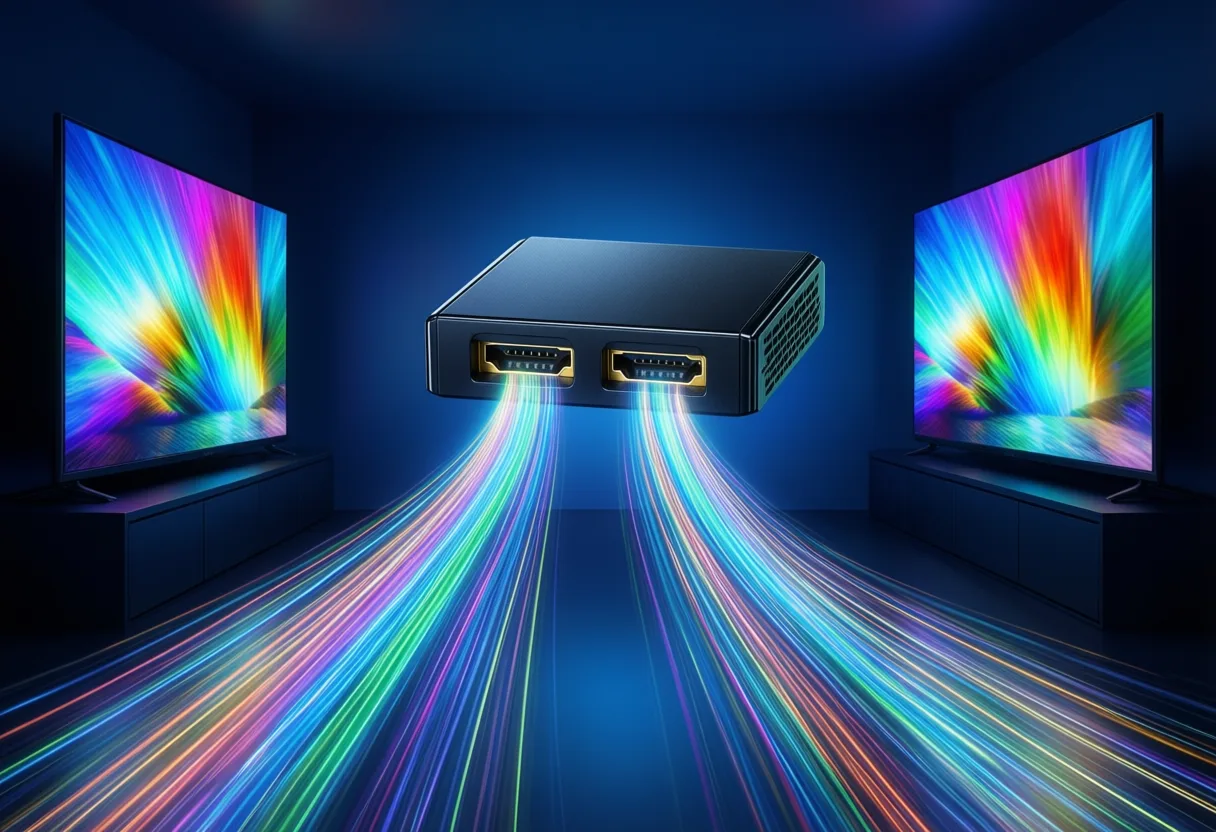
That’s where a single-input, dual-output HDMI splitter shines. It Takes One signal-say, from your laptop, game console, or streaming box-and sends an identical copy to two displays. No lag. No delay. Just perfect symmetry.
- One source feeds two monitors.
- Both displays show the exact same image.
- Ideal for training sessions, retail demos, or side-by-side presentations.
You’re not building a command center for Stock Trading. You’re ensuring everyone sees what you see-At the same time.
The Mirror, Not the Maze
It’s easy to confuse mirroring with extending. But they’re not twins-they’re distant cousins who show up to the same party.
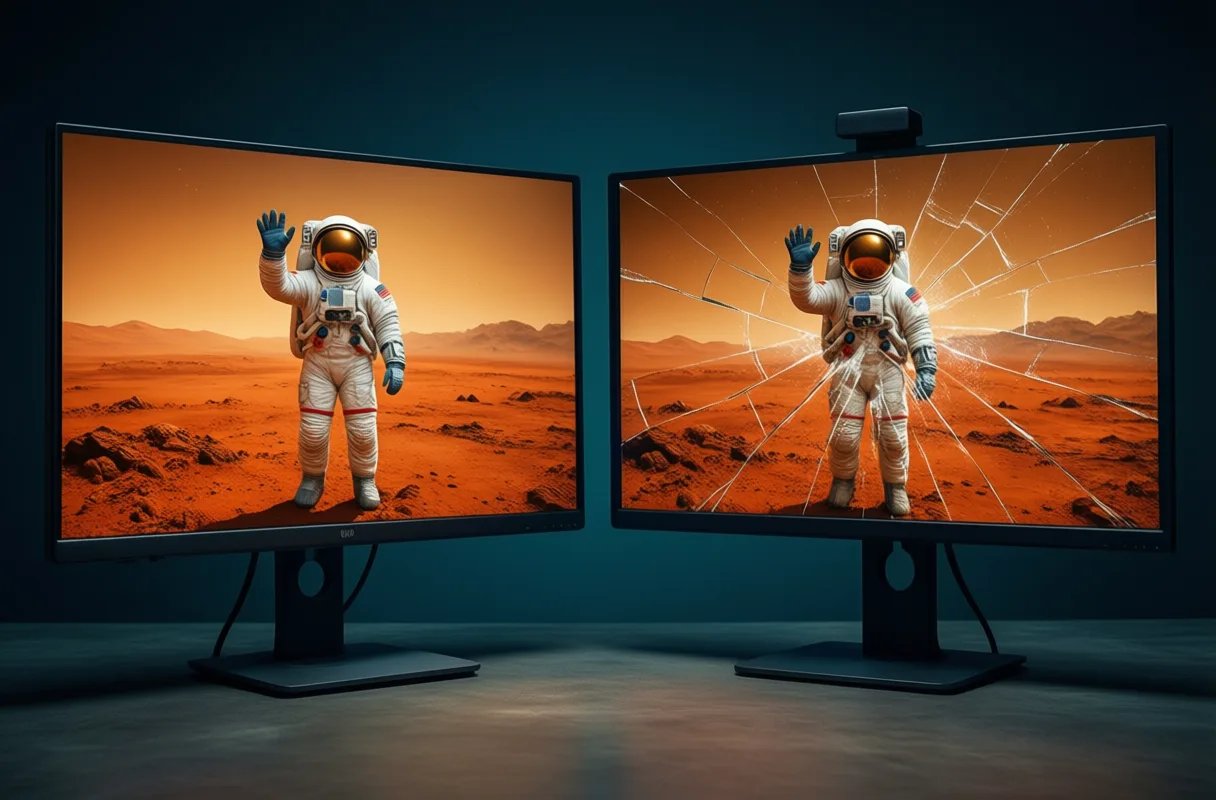
An HDMI splitter Mirrors. Full stop. It duplicates the video output from one Device across Two screens. What plays on the left monitor also plays on the right. If you’re watching a video, editing a photo, or running a slideshow, both displays are in lockstep.
Extending your display-sending different content to each screen-requires different hardware. A true multi-monitor setup uses either multiple video outputs from your computer or a specialized docking station. An HDMI splitter won’t give you that flexibility. And that’s okay.
Think of it like a photocopier:
You hand it one page. It gives you two.
Same words. Same layout.
Just… louder.
So if you’re trying to drag windows between monitors or run two apps side-by-side across screens, this isn’t the tool. But if you need Clarity through consistency, you’re in the right place.

How It Works: Simplicity, Wired
Setup is simpler than your morning coffee ritual.
First, plug the HDMI splitter into your source device-your PC, media box, or game console. It sits quietly, a small black rectangle with one input port and two output ports. Then, connect two HDMI cables from the splitter to your monitors. Power it if needed-some models Require external Power for stable signal transmission.
No drivers. No apps. No blinking lights asking for permission.
Just plug, wait a few seconds, and-boom-your display appears twice. The synchronization is near-instant, with no noticeable delay between screens. Most models support up to 1080p resolution, which covers the needs of most office and educational environments.
And because it’s all hardware-based, there’s little that can go wrong. No updates. No compatibility alerts. Just Signal in, signal out.
Choosing the Right One for Your Needs
Not all splitters are built the same-even if they look identical.
Some support only 1080p, while others promise 4K pass-through. But here’s the catch: If your source or display doesn’t support 4K, that feature won’t matter. Match the splitter to what you already own.
Also, check the build. A well-shielded HDMI splitter reduces interference, especially if your cables run long or near power sources. And if you’re using it in a permanent setup-say, mounted behind a TV or tucked into a lectern-look for one with sturdy ports that won’t wobble under constant use.
Finally, consider power. Passive splitters draw from the source signal, which can lead to flickering over longer runs. Active splitters, with their own power adapter, keep the signal strong and steady.
- For short distances and occasional use: passive is fine.
- For permanent installations or 4K signals: go active.
- Always verify compatibility with your devices.
The Quiet Power of Seeing Double
We chase bigger, faster, more connected-but sometimes, the most powerful tech is the one that gets out of the way.
A Dual Monitor HDMI Splitter doesn’t transform your workflow with AI or augmented reality. It doesn’t learn your habits or predict your next move. It simply Copies. And in that act of repetition, it enables something rare: shared attention.
In a world of personalized feeds and isolated screens, that’s quietly revolutionary.
So if you’ve ever needed someone to see exactly what you see-no more, no less-you’re not just setting up monitors.
You’re syncing sightlines.
You’re building common ground.
One mirrored pixel at a time.
More Than Just a Cable Clone: The Lowdown on HDMI Splitters
Mirror, Mirror on Two Screens
Ever wanted to show off your game walkthrough or share a video call on a bigger display without losing what’s on your main screen? That’s where an HDMI splitter steps in. These handy gadgets take one HDMI signal-say, from your laptop, game console, or streaming box-and send an identical copy to two (or more) monitors. It’s like giving your screen a twin. Just keep in mind: most basic HDMI splitters only mirror the display, meaning both screens show the exact same thing. If you're hoping to drag windows from one screen to another like a desktop extension, a splitter won’t do the trick-those setups usually need display extension tech baked into your device, not a simple signal duplicator.
Why 1080p Still Matters (and What 4K Brings)
Not all splitters are built the same, and resolution plays a big part. Many standard models handle up to 1080p, which is still plenty sharp for monitors under 24 inches or secondary displays used for presentations and video playback. But if you’re working with newer 4K monitors, there’s good news: splitters supporting 4K resolution exist and can mirror that ultra-clear image across both screens-provided your source device and cables are also 4K-ready. Think of it like upgrading from HD to full-blown cinema quality, only now you’re sharing the show on two screens at once.
Plug, Play, and Get On With It
Setting up a splitter is usually a breeze-no drivers or software needed. Just plug the splitter into your source device’s HDMI port, connect two HDMI cables from the splitter to your monitors, and power the splitter if it needs an external power source. That’s it. It’s so simple you could set one up blindfolded (but we wouldn’t recommend it). And since they work by duplicating signals electrically, they’re compatible across brands and operating systems. Whether you're using a Windows PC, a Mac, or a gaming console, if it’s got an HDMI port, you’re probably good to go. Explore more stories, videos, and creators on Loaded.
Frequently Asked Questions
What does an HDMI splitter do?
An HDMI splitter takes one video signal from a source device and sends an identical copy to two displays. Both screens show the exact same content at the same time.
Can an HDMI splitter extend my desktop across two monitors?
No. An HDMI splitter only mirrors the display, meaning both screens show the same image. To extend your desktop, you need different hardware or a multi-output setup.
Do I need external power for an HDMI splitter?
Some models require external power for stable signal transmission, especially active splitters used in permanent installations or with 4K signals. Passive splitters draw power from the source signal.
Is 1080p resolution sufficient for most uses?
Yes. Most office and educational environments are well-served by 1080p, which is supported by many standard HDMI splitters.
This article was produced with AI assistance. How Neuron Magazine uses AI.
Saoirse investigates how automation, remote systems, and AI reshape labor, careers, and human purpose. She centers worker voices and cultural change, blending data with narrative depth to reveal what the future feels like on the ground.