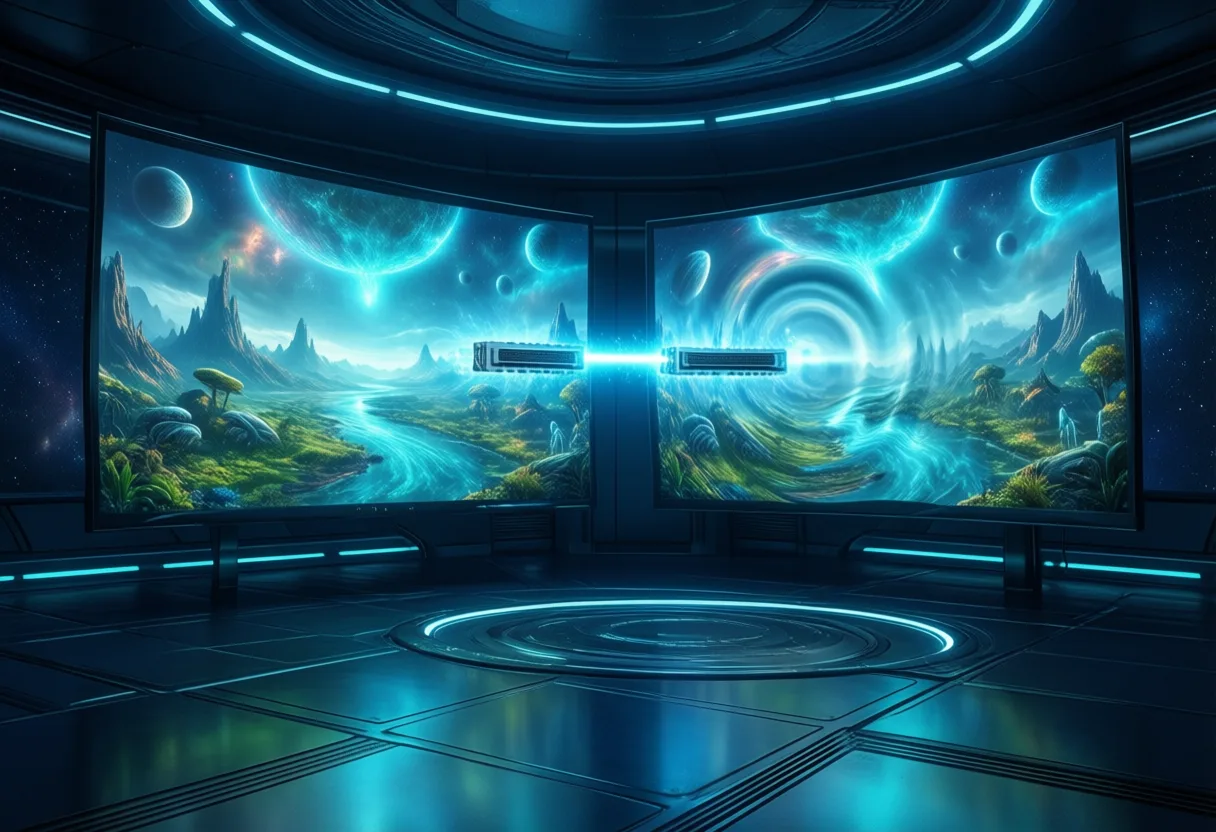
Imagine presenting a high-stakes pitch, your 4K visuals flawlessly duplicated across two screens. Or gaming with cinematic clarity mirrored on adjacent displays. This isn’t magic-it’s precision engineering. A 4K HDMI splitter Makes it possible by duplicating your source signal across two monitors without compromise.
But here’s the catch: not every Dual-display setup Needs extension. Sometimes, mirroring is the smarter, faster, more reliable play. And when you’re dealing with 4K HDR content, the right hardware makes all the difference between stunning clarity and frustrating dropouts.
Let’s cut through the Noise And break down exactly how a 4K HDMI splitter transforms your dual-display experience-when to use it, what to look for, and how to avoid the pitfalls that trip up even seasoned tech users.
Why Mirroring Beats Extending for Certain Dual Display Setups
You’ve got two monitors. Now what? Extend your desktop or mirror the screen? The answer depends on your goal. Extending gives you more workspace-great for multitasking. But Mirroring ensures consistency, which is critical in presentations, training, or public displays.
Think about a classroom. A teacher needs every student to see the same diagram, video, or slide-no scrolling differences, no lag. Mirroring guarantees that. Same goes for retail kiosks or Conference rooms Where message control is non-negotiable.
A 4K HDMI splitter enables this exact replication. It takes one output-say, from a PC, game console, or streaming box-and sends an Identical digital copy To two displays simultaneously. No latency. No sync issues. Just pure duplication.
And unlike software-based Solutions, this happens at the hardware level. The source device doesn’t need multiple GPU outputs. One HDMI port. Two screens. Done.
This is where a Dual Monitor hdmi splitter For Mirroring displays shines. It’s not about expanding your desktop-it’s about Amplifying visibility Without complexity.
How a 4K HDMI Splitter Delivers Identical Signals to Two Monitors
At its core, an HDMI splitter is a signal courier. It receives a single 4K input and duplicates it perfectly across two outputs. But how? Inside, it uses a Re-driver chip That regenerates the digital signal, ensuring both displays get a clean, full-bandwidth feed.
Unlike wireless casting or daisy-chaining via DisplayPort, HDMI splitters work passively or actively to maintain Bit-for-bit signal integrity. That means every pixel, every frame, every audio packet is copied-not compressed, not delayed.
The process is simple: plug your source (like a laptop or media player) into the splitter’s input. Then connect two HDMI cables from the splitter to your monitors. Power It if required. The splitter does the rest.
HDMI Splitters are the perfect solution when you need to connect one source of digital high-definition video to multiple displays at the same time. Whether it’s a 4K movie or a live feed, both screens show the same content in perfect sync.
No buffering. No stutter. Just Real-time mirroring With the fidelity 4K demands.
And because it’s a direct hardware link, there’s no network dependency. No pairing. No dropped connections. Just plug-and-play reliability.

Can Your Source Device Handle Dual 4K Outputs?
Here’s a hard truth: your splitter can be flawless, but if your source can’t output 4K, you’re stuck. Not all devices are built to drive high-resolution signals-even when sending to just one screen, let alone two via a splitter.
Check your GPU specs. Does it support HDMI 2.0 or higher? HDMI 1.4 maxes out at 4K@30Hz, which feels choppy. For smooth 4K@60Hz, you need HDMI 2.0 or better. Many older laptops and budget PCs fall short.
Game consoles? The PlayStation 5 and Xbox Series X handle 4K@60Hz natively. So do most modern streaming boxes like Apple TV 4K or Nvidia Shield. But older models? They might downscale or flicker.
And don’t assume USB-C or DisplayPort outputs translate directly. If you’re using an adapter to HDMI, verify it supports 4K@60Hz. A bottleneck anywhere in the chain kills performance.
Your splitter can’t boost what isn’t there. It only duplicates. So if your source outputs 1080p, both displays will show 1080p-even if they’re 4K panels.
Bottom line: Match your source capability to your display goals. A splitter amplifies, but never upgrades.
What to Look for in a High-Quality 4K HDR Splitter
Not all splitters are created equal. Some claim 4K support but choke on HDR or high frame rates. To avoid disappointment, focus on three key specs.
First: HDR pass-through. Without it, your 4K content loses dynamic range, contrast, and color depth. HDR10 and HLG support should be standard. Dolby Vision compatibility? A bonus, but not always necessary.
Second: Audio fidelity. A top-tier splitter supports Dolby TrueHD and DTS-HD Master Audio. That means your home theater or soundbar gets the full cinematic experience-no downgraded audio to stereo.
Third: HDMI version compliance. Look for HDMI 2.0 or higher. HDMI 2.1 is ideal for future-proofing, but 2.0 handles 4K@60Hz with HDR and 4:4:4 chroma sampling-critical for text clarity and color accuracy.
A black HDMI splitter that mirrors 4K HDR content to two displays with downscaling and Dolby TrueHD support is available at major retailers. These units often include EDID management, which helps displays negotiate the best resolution automatically.
Also consider build quality. Metal housings dissipate heat better than plastic. And Separate power input? A sign of an active splitter, which we’ll discuss later.
Don’t skimp here. A $20 splitter might work today-but fail the moment you upgrade your source or displays.
Splitting vs. Extending: Choosing the Right Solution for Your Workflow
Let’s clear the fog: Splitting is mirroring. Extending is expanding. They solve different problems.
If you want to drag windows from one screen to another, run Excel on the left and Slack on the right-You need extension. That requires either a multi-output GPU or a docking station with DisplayPort or USB-C Alt Mode.
But if you’re showing a demo to a room, running a digital sign, or feeding two projectors from one source-Mirroring is the answer. A 4K HDMI splitter delivers that.
These devices allow you to connect multiple displays to a single source, providing a wider workspace-Only if Your system supports extended desktop mode. But that’s not what splitters do. Splitters duplicate.
Confusing the two leads to frustration. You plug in a splitter, expect two independent screens, and get the same image on both. That’s not a defect. That’s by design.
So ask yourself: do I need more screen real estate or more visibility?
For true multi-monitor expansion, consider docking stations or graphics adapters. For Perfectly synced duplication, a splitter is unbeatable.
And when you need to mirror 4K HDR across two screens, there’s no better tool.

Real-World Uses for Mirroring with a Single HDMI Output
Where does mirroring actually matter? Beyond the obvious-presentations and classrooms-there are powerful use cases you might not consider.
Retail stores use mirrored displays to show promotions on multiple screens from one media player. No syncing issues. No extra hardware. Just consistent branding.
Gaming setups? Some streamers use a splitter to feed their gameplay to both a recording PC and a monitor-ensuring the audience sees exactly what’s on screen, in real time.
Medical training rooms mirror surgical feeds to multiple displays so students don’t crowd around one screen. Every angle is visible. Every detail preserved.
And in command centers-security, logistics, or emergency response-mirroring ensures all operators see the same live data feed. No discrepancies. No delays.
Even home users benefit. Imagine watching a 4K movie on both your living room TV and a projector-without rebuffering or lag.
When Message consistency Is critical, mirroring wins. And a 4K HDMI splitter makes it possible from a single output.
It’s not about doing more-it’s about showing more, clearly and reliably.
Why Cable Quality and Bandwidth Matter in 4K Signal Splitting
You could have the best splitter on the planet-and still get flickering, dropouts, or “no signal” errors. Why? The cables.
4K@60Hz with HDR demands a minimum of 18 Gbps bandwidth. That requires certified high-speed HDMI cables. Not “compatible” ones. Not dollar-store cords. Certified.
Low-quality cables lack proper shielding, leading to interference. Thin conductors can’t carry the data load. And poorly molded connectors cause handshake failures-where the display and source can’t agree on resolution.
Always use cables labeled “High Speed HDMI” or “Ultra High Speed HDMI” (for 8K/4K@120Hz). Look for the official certification logo.
And length matters. Beyond 6 feet, signal degradation increases. For longer runs, use Active HDMI cables Or fiber-optic variants that maintain signal strength.
Remember: the splitter can only work with what it receives. A weak or noisy signal in means a corrupted signal out-on both displays.
Pair your splitter with Premium cables, and you eliminate the most common cause of 4K mirroring failures.
It’s not overkill. It’s Non-negotiable For flawless performance.
Do You Need Powered Splitters for Long-Distance Setups?
Short answer: Yes, if you’re going long or driving big displays.
Passive splitters work fine for runs under 6 feet and 4K@30Hz. But they don’t amplify the signal. They just divide it. And splitting weakens strength.
Active or powered splitters have an external power source. That power fuels Signal re-drivers That boost and clean the HDMI feed before sending it out. Result? Stable 4K@60Hz over longer distances.
If you’re connecting two large 4K monitors across a conference room, or running cables through walls, Go powered. The extra juice ensures both displays get a full-strength signal.
Also, larger screens often demand more EDID negotiation and higher bandwidth. A powered splitter handles that load without hiccups.
For desktop setups under 10 feet, passive may suffice. But for professional environments, reliability trumps cost savings.
Our HDMI® splitters enable you to maximize the number of displays used with a single High-Definition Multimedia Interface output-and many include power adapters for exactly this reason.
Don’t gamble on uptime. Power your splitter when the stakes are high.

Setting Up Your Dual Display System: Step-by-Step Guide
Setting up a 4K HDMI splitter isn’t rocket science-but doing it wrong causes headaches. Follow these steps, and you’ll be mirroring in minutes.
Step 1: Power off all devices. Source, displays, splitter. Prevents electrical surges and handshake errors.
Step 2: Connect the source. Plug your PC, console, or media player into the splitter’s HDMI input using a high-speed cable.
Step 3: Connect both displays. Use two certified HDMI cables from the splitter’s outputs to each monitor or TV.
Step 4: Power the splitter (if required). Plug in the DC adapter. Active models won’t work without it.
Step 5: Turn everything on. Start with the displays, then the splitter, then the source.
Step 6: Configure display settings. On Windows, press Win + P, select Duplicate. On macOS, go to System Settings > Displays > Mirror Displays.
That’s it. You’re now mirroring 4K content across two screens.
When you want to send HDMI signals to several screens simultaneously, you can use HDMI splitters to distribute signals among multiple screens. HDMI cables are the final, critical link-so don’t rush this step.
Test with a 4K video. Check audio. Verify both screens are in sync.
If it fails, troubleshoot-starting with cables and power.
Common Issues and How to Troubleshoot Them Fast
No signal? Flickering? Audio drops? Don’t panic. Most issues are fixable in minutes.
Problem: No display on one or both screens.
Check cables. Swap them. Try a different HDMI port. Ensure the splitter is powered. Restart the source device.
Problem: Flickering or intermittent signal.
Likely a cable or power issue. Use shorter, certified high-speed HDMI cables. If using a passive splitter, switch to a powered model.
Problem: Audio not working.
Verify your source outputs audio via HDMI. Check TV or monitor audio settings. Some splitters require EDID management-reset by power-cycling.
Problem: One screen shows lower resolution.
Ensure both displays support the same 4K mode. Force the source to output a common resolution (e.g., 4K@30Hz) to test.
Problem: “Handshake” failure (blinking screen).
Caused by EDID conflicts. Power down everything, wait 30 seconds, restart in order: displays, splitter, source.
Most issues stem from Cables, power, or mismatched specs-not the splitter itself.
Keep spares on hand. Test components individually. And always start simple.
Beyond Two Screens: When to Consider Advanced Multi-Display Solutions
Two screens are just the beginning. What if you need five? Ten? Think digital signage walls, control rooms, or immersive installations.
For more than dual outputs, basic HDMI splitters won’t cut it. You need Professional-grade 1x4, 1x8, or 1x16 splitters With signal amplification and EDID emulation.
Or consider Docking stations with DisplayPort support. These can drive multiple independent displays-extending, not mirroring.
Add 5 or More External Monitors for Laptop Using Docking Station/USB. Go Beyond Dual Monitor Setup. Solutions like these use USB-C or Thunderbolt to deliver multi-display flexibility that HDMI alone can’t match.
For pure mirroring at scale, HDMI distribution amplifiers-like those from OREI or StarTech-offer reliable 1-to-many signal replication with clean power and robust build quality.
Your needs evolve. So should your setup.
When dual isn’t enough, Scale smart-with hardware built for the load.
| Feature | Why It Matters |
|---|---|
| HDR pass-through | Preserves dynamic range, contrast, and color depth in 4K content |
| Dolby TrueHD support | Delivers full-quality audio to home theater systems |
| HDMI 2.0 or higher | Enables 4K@60Hz with HDR and 4:4:4 chroma sampling |
| EDID management | Helps displays negotiate best resolution automatically |
| Powered design | Boosts signal for stable performance over long distances |
| Metal housing | Dissipates heat better than plastic for improved reliability |
Mirror, Mirror on the Wall: Fun Facts About HDMI Splitters
How One Signal Becomes Two (or More)
Ever wonder how a single HDMI port can feed two screens at once? That’s where an HDMI splitter steps in-like a digital photocopier for your video signal. Instead of stretching your laptop across displays like a dual-monitor setup, a splitter simply mirrors the exact same image to both screens. It’s perfect when you want everyone in the room to see the same thing, whether you're gaming, presenting, or watching a movie on two TVs at once. No fancy software or extended desktop settings needed-just plug in and go.
4K, HDR, and Hidden Superpowers
Not all splitters are created equal, and some pack serious tech under the hood. Many modern versions handle 4K resolution with HDR, meaning you get crisp, vibrant images on both displays without quality loss. Some even support advanced audio formats like Dolby TrueHD, so your home theater setup doesn’t sacrifice sound for convenience. And while most splitters mirror content, not extend it, they often include handy features like signal boosting or downscaling-helping older displays play nicely with newer sources. Think of it as a translator and a power-up in one small box.
From Living Rooms to Lecture Halls
HDMI splitters aren’t just for home use-they’re workhorses in classrooms, conference rooms, and retail spaces. Imagine a training session where the same demo plays on six screens around a room, all fed from one laptop. That’s the splitter’s sweet spot. They’re also popular with streamers who want to monitor their output on a secondary display without lag. Compact, affordable, and surprisingly powerful, these little boxes quietly make multi-screen setups possible, one mirrored frame at a time. Explore more stories, videos, and creators on Loaded.
Frequently Asked Questions
What does a 4K HDMI splitter do?
A 4K HDMI splitter duplicates a single source signal to two displays simultaneously, ensuring identical content appears on both screens. It works at the hardware level for real-time mirroring without latency or sync issues.
Can an HDMI splitter extend desktop space across two monitors?
No, an HDMI splitter only mirrors the same image on both displays. For desktop extension, a multi-output GPU or docking station with DisplayPort or USB-C Alt Mode is required.
Do I need a powered HDMI splitter for 4K mirroring?
For long cable runs or large 4K displays, a powered splitter is recommended. It uses an external power source to boost and clean the signal, ensuring stable 4K@60Hz performance.
Why is cable quality important when using a 4K HDMI splitter?
4K@60Hz with HDR requires at least 18 Gbps bandwidth. Certified high-speed or ultra high-speed HDMI cables prevent signal dropouts, flickering, and handshake failures caused by poor shielding or thin conductors.
This article was produced with AI assistance. How Neuron Magazine uses AI.
Malik dissects how artificial intelligence transforms decision-making in governments and corporations, tracking algorithmic power shifts and policy gaps. He writes with clarity and urgency, making high-stakes tech strategy accessible without oversimplifying its risks.